


Getting an "invalid file format" error message when you're uploading your own songs, podcasts, or beats on YouTube?
Well, you are not alone! Generally speaking, many YouTubers might have encountered difficulties when uploading audio files to YouTube because this platform is an exclusive video hosting website, which doesn't support direct uploading of audio files such as MP3 and WAV.
So how can you upload an audio file, maybe music, a podcast, or a sound recording, to YouTube?
The solution is to convert your audio into a video format compatible with YouTube. Keep reading to learn different ways to turn your audio into a video for uploading to YouTube.
Contents:
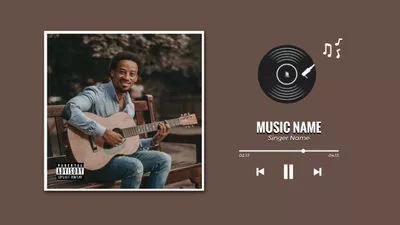
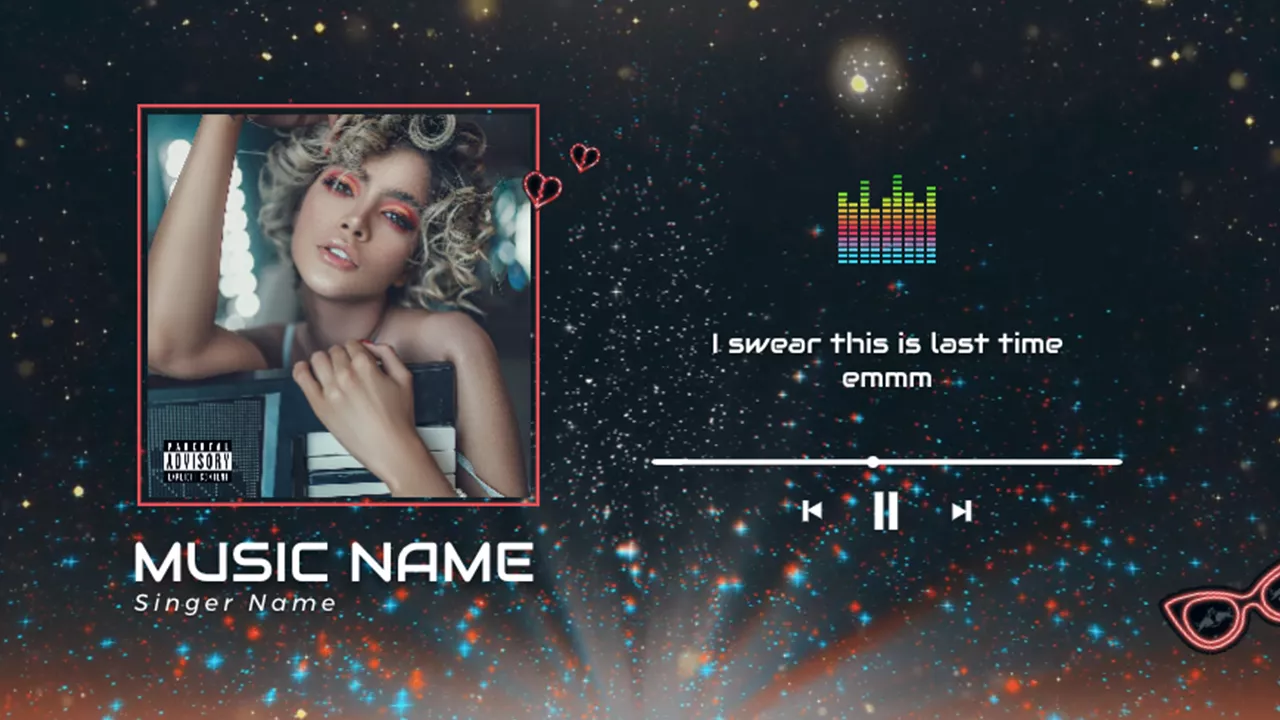
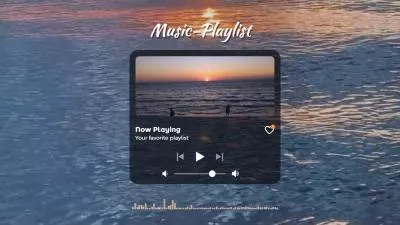

Create Video Faster with FlexClip's Pre-Made Templates →
Start from Scratch Easily with FlexClip's Online Video Maker →
Also Read: Online Subscribe Animation Maker: How to Add Animated Subscribe Button to YouTube >
Can I Upload an Audio File to YouTube?
Can I upload the audio file, such as MP3 or WAV, directly to YouTube? No.
As an exclusive video hosting website, YouTube only allows people to upload video files; it doesn't accept or recognize common audio files such as MP3, WAV, AAC, and all others separately by default. When you try to upload audio files - a music song or a podcast, it ends up with the following error:
"The file you uploaded contains only audio and no video. Learn how to easily convert your audio track to a video file type."
To get around this limitation, your audio must be converted into a video format. The good news is that this is easy to do with FlexClip, and you don't need advanced editing skills. You can either add visual elements like images or use AI tools to generate a talking avatar that represents your audio, allowing you to upload your favorite audio file—such as a song, podcast, or any sound recording—to YouTube.
Method 1: Combine WAV or MP3 Audio with Images to Create a YouTube Video
One of the simplest ways to turn audio into a YouTube-ready video is by pairing it with images.
It's pretty easy to upload audio - WAV or MP3 file - to YouTube with FlexClip. All you need is to input your audio file, add images or video clips, make any edits if necessary, then convert it to a YouTube-acceptable video format, and finally, upload the audio with an image to YouTube directly.
Now, let's learn the detailed steps of converting any audio file to a video and uploading it to YouTube.


Step 1 Import your audio file FlexClip
Once you access the FlexClip editor, you can drag and drop your audio file to the Media section. There is also an "Upload Files" button at the top left that allows you to upload your audio files to FlexClip. Or you can tap the drop-down icon beside from where you will be able to choose an audio track to upload directly from some third-party platforms, such as Google Drive, Dropbox.

Image Board: Import your audio file FlexClip
Step 2 Add an image or video to accompany the audio
Once uploaded, you can click the plus icon or drag and drop the audio file directly to add it to Timeline.
After that, you can add an image or video to accompany your audio. Here, you can use your own image, or pick one from FlexClip's photo or video library, and even try FlexClip's AI tools to generate some AI visuals. Remember to adjust the duration of the background image, loop the clip, or add enough visuals to make sure it fits the length of your audio.

Image Board: Add an image or video to accompany the audio
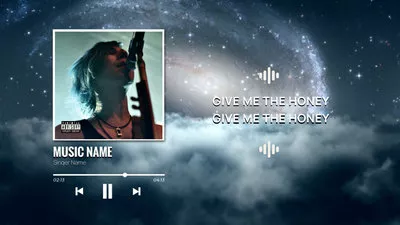
Pro tip for you to quickly make an aesthetic one for your music or podcast - simply try FlexClip's pre-made templates and get started easily.


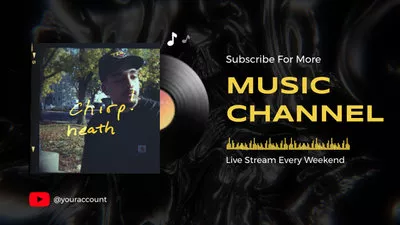
Step 3 Include subtitles and titles (Optional)
If you're working with a music song or podcast, adding lyrics or subtitles to accompany the audio is necessary. FlexClip's audio subtitle generator can help you generate subtitles or captions automatically within clicks.

Image Board: Include subtitles
Also, you can use FlexClip’s easy text editor to add a title card or include some text information with cool animation for a end screen to level up your project. What’s more, FlexClip offers more editing tools and effects for you to edit your video; just feel free to explore more!

Image Board: Add more text effects
Step 4 Upload the audio with images to YouTube
Once you are done compiling your project and using numerous features provided by FlexClip, you can preview the whole video to check the final effect. Once satisfied, you can click the Export button to save and share the video with audio and images. Wan to upload the audio file with an image to YouTube immediately? FlexClip’s quick social-share feature makes it possible in one click!

Image Board: Upload the audio with images to YouTube
Method 2: Convert Audio into AI Talking Avatar Video for YouTube Uploads
Another modern approach is using AI to transform your audio into a talking avatar video. The FlexClip AI talking avatar generator makes the process simple and beginner-friendly. It offers a quick way to turn your audio into a video without complex editing or the need to record yourself on camera.
Instead of manually creating visuals, FlexClip AI talking avatar generator uses advanced AI to convert your audio into a talking avatar video that automatically syncs lip movements with your speech. This allows you to transform a purely audio track into a polished, video-ready format in just a few steps—making it ideal for YouTube and other video platforms.
Now, follow the simple steps below to see how you can easily turn your audio into a video using the FlexClip AI Avatar Generator and upload it to YouTube.
Step 1 Choose an AI Avatar for Your Video
First, click the button above to open the FlexClip AI Avatar Generator. You'll find a wide range of AI avatars that can speak your audio and help you create a professional-looking video in minutes.
You can also upload your own image or video to create a custom avatar, making your content more personalized and unique.
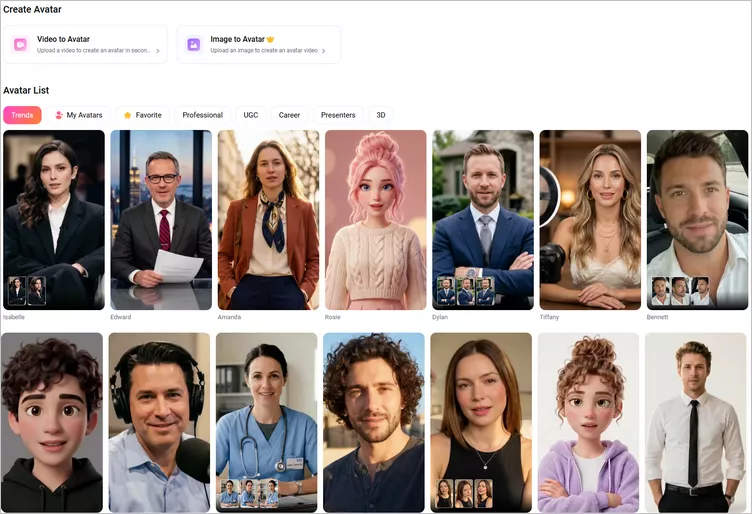
Choose an AI Avatar for Your Video
Step 2 Upload Your Audio File
After selecting your avatar, upload your audio file into FlexClip. It supports common formats such as MP3, WAV, and AAC, so you can easily convert almost any audio recording into an AI-powered video.
If you start with a script instead of audio, you can simply paste your text and generate a talking avatar video instantly. In this way, you can choose from different AI voice options and even clone your own voice or choose a desired voice for a personalized narration.
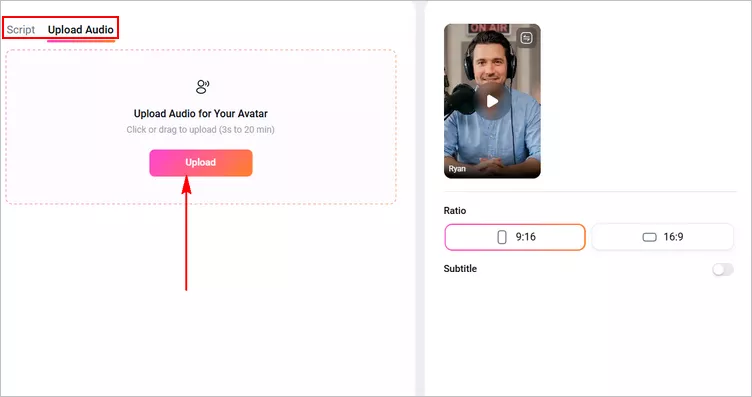
Upload Your Audio File
Step 3 Convert Audio to Video with Talking Avatar
Next, adjust your video settings before generating the final output. Select a 16:9 aspect ratio (ideal for YouTube), also add subtitles to improve accessibility and choose a subtitle style that fits your preference. Once everything is ready, click Generate to convert your audio into a lip-synced talking avatar video.
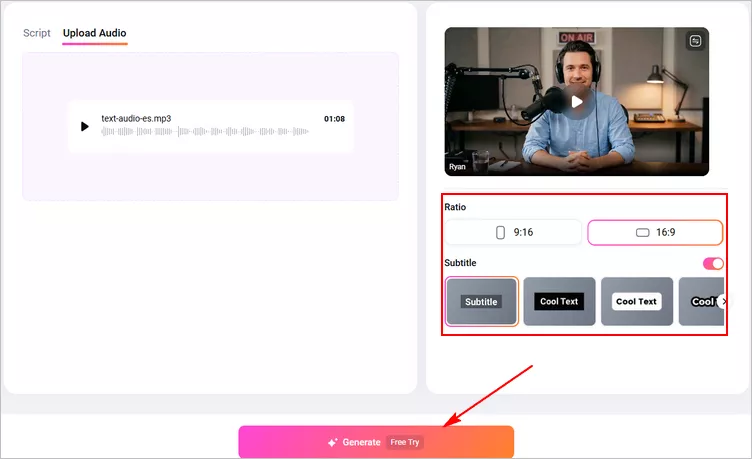
Convert Audio to Video with Talking Avatar
Step 4 Preview and Edit Your AI-generated Talking Avatar Video
After the video is generated, preview it to ensure everything looks good. If you're satisfied, you can download it directly. However, for better results, it’s recommended to use the built-in editor to enhance your video further.
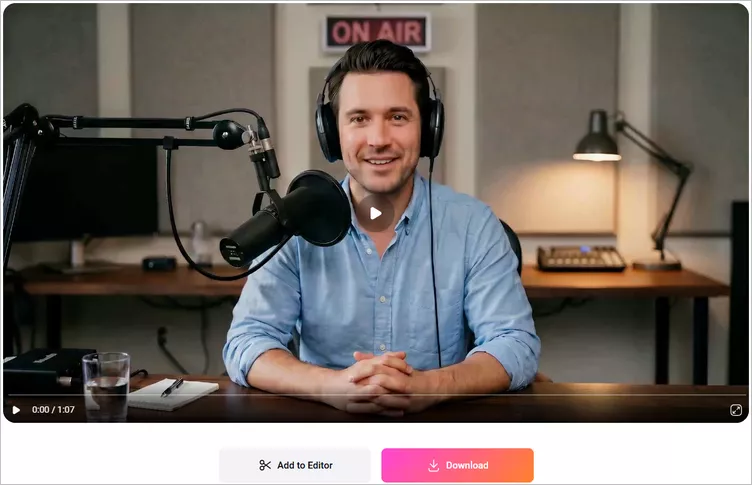
Preview Your AI-generated Talking Avatar Video
Click the Add to Editor button to import your AI talking avatar video into the FlexClip editor. The video will automatically be placed on the blank canvas. Select it, right-click, and choose Set as Background to begin editing.
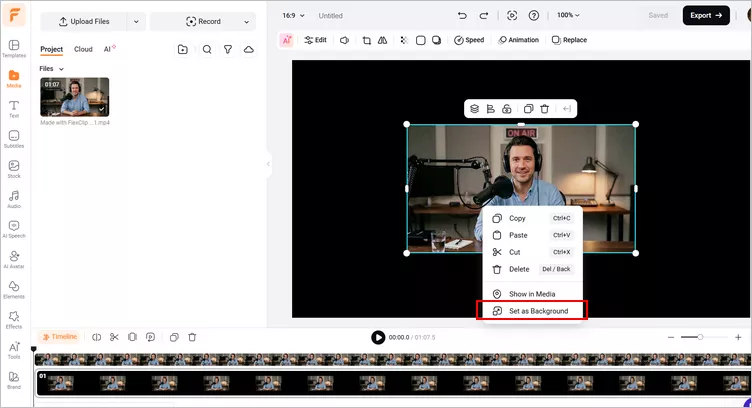
Add the AI-generated Talking Avatar Video to Editor
From there, you can enhance your video using powerful tools and effects—add text animations, background music, your logo, or even a custom intro and outro—to make your AI talking avatar video more engaging and professional.
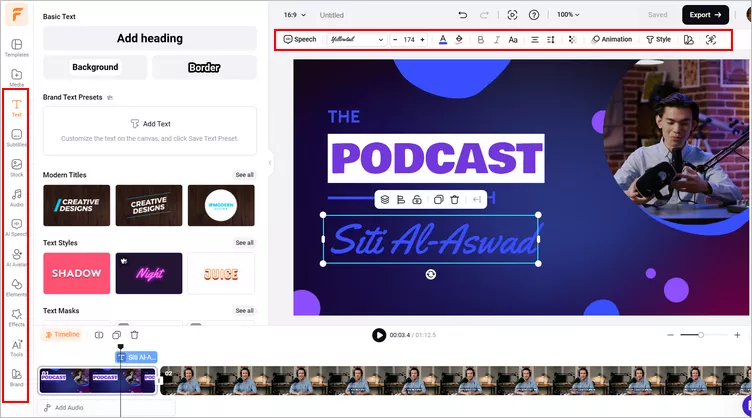
Edit the AI Talking Avatar Video
Step 5 Upload Your Podcast Video to YouTube
Once editing is complete, preview your final video to ensure everything is perfect. Then export it in a YouTube-ready format and upload it directly to your channel. FlexClip also offers a quick share feature, allowing you to publish your video to YouTube with just one click.
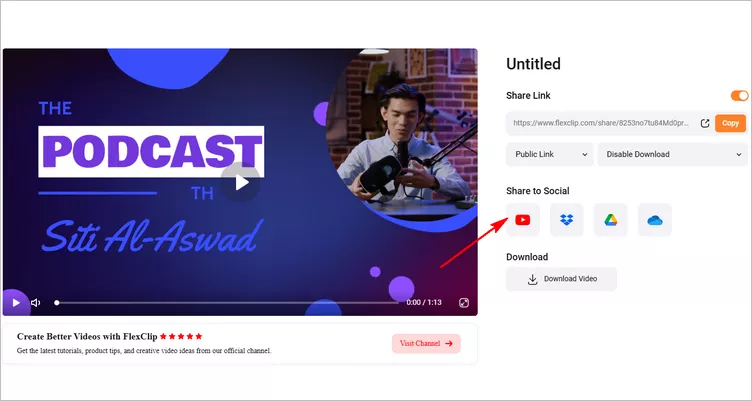
Upload the Video to YouTube
Final Words
Since YouTube does not support audio uploads, converting your audio into video format is essential. You can either pair your audio with images for a simple and effective video, or the AI avatar technology for a more dynamic and professional result. Turn to FlexClip and start sharing your favorite audio on YouTube quickly!




FlexClip AI Video Maker
Reach professional-quality videos faster with easy editing tools, templates, and smart AI.
Start Now for Free
Hot & Trending
-

Best Ways to Find Music in YouTube Videos
-

Instagram Story Video Quality Bad After Upload? Fix It!
-

How to Repost Video on TikTok & How to Remove TikTok Repost
-

Improve Video Quality Online: 3 AI Video Quality Enhancers You Can't Miss
-

4K Convert to HD 1080p without Watermark: Best 4k Video Converters
-

Best 8 Free Video Editors - No Download Required
-

Top 13 Birthday Video Makers with Music and Effects Free
-

How to Search Filters on TikTok & Use a Filter You See - TikTok Filter Guide


